By property and unit
Keep each rental's income and expenses together in a current property breakdown.
Expense and receipt scanning
Upload the receipt for a plumbing repair. Check the vendor, amount and date, choose the rental and category, then save the expense with its receipt for reporting.
Start in Expenses, then enter the repair and attach its receipt before saving.
One repair, one complete record
Follow the repair from the amount you paid to the receipt you can find again.
Record $245.00 for plumbing materials. Check the date, select 410 Maple Court and choose Repairs as the account category.
Open Notes and receipt and add the repair receipt. Review any AI-read vendor, amount and date against the original.
Save the entry and return to Expenses. The paperclip shows that the receipt stays with the recorded plumbing cost.
The receipt stays connected
A phone photo or PDF invoice brings the vendor, date and total into view. Receipt scanning reads the details and keeps the original attached so you can return to the source.
Receipt scanning uses the files you provide. It does not pull transactions from your bank.

You approve the entry
Repairs, Utilities, Insurance, Supplies: choose the category that fits the expense and check the property it belongs to. A suggestion becomes a recorded expense only after your approval.
If the receipt is unclear, enter the missing details yourself. Confirm the rental even when a property is suggested from an address on the receipt.
The same record, ready for reporting
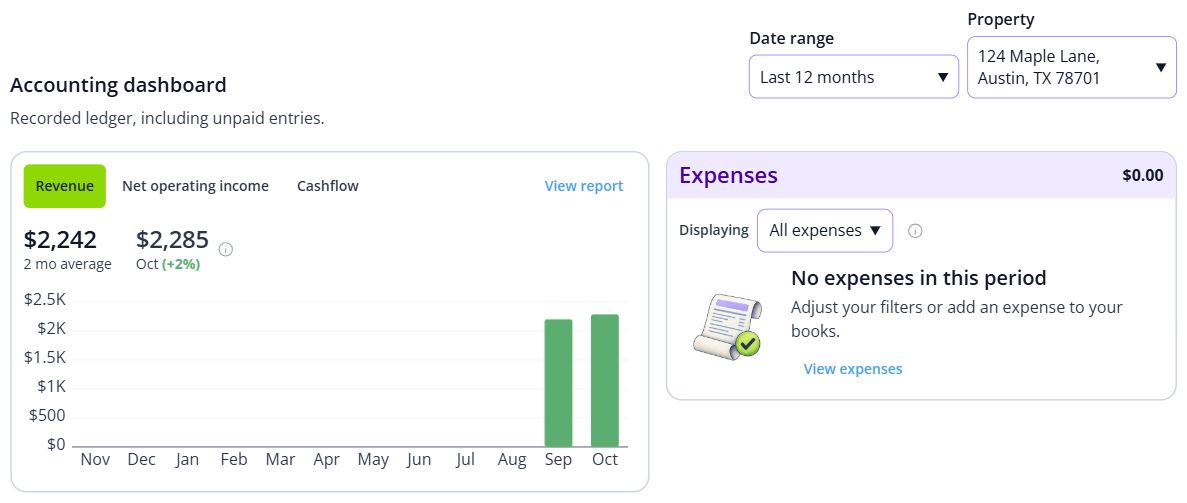
Approved expenses are grouped by category and property. Follow the plumbing cost into the property's profit-and-loss, then use the recorded details in your year-end exports.
Keep each rental's income and expenses together in a current property breakdown.
Categorized expenses feed a Schedule E summary for review, with the original receipts retained with the expense.
Export the ledger as CSV or a QuickBooks Online journal-import file.
Accounting reports and exports require a paid plan. Schedule E is an estimate for planning; review it with your tax professional. See plans and fees.
Before you start
A photo of a paper receipt, a screenshot or a PDF invoice. Rentari.ai reads the vendor, total and date from the file. Review those details against the receipt before approving the expense.
In your accounting ledger, tagged to a category and a property. From there it feeds your profit-and-loss and Schedule E, with the original receipt kept alongside the expense.
Change it before you approve. Categorization is a proposal you confirm, never an automatic write, so your books show the entries you approved.
Describe an expense, or upload a photo of the receipt. The AI maps it to its IRS Schedule E line.
Nothing here is saved, sent or charged, and no real tenant, applicant or vendor is involved. It runs the same models the product runs, so it is rate limited per visitor.
Keep the repair cost, property and supporting receipt together from the day you record them.
You approve every entry. Review plan features and service charges on Pricing.